Google Search Console Integration
Glass Analytics analytics can integrate with Google Search Console.
Currently, Google Search Console integration supports:
- Page impression, click and average rank data.
- Keyword data.
To enable Google Search Console for Glass Analytics, you must have Owner access to the Google Search Console property for your site.
How to link Glass Analytics with Google Search Console
Go to Google Search Console
You can find it here.
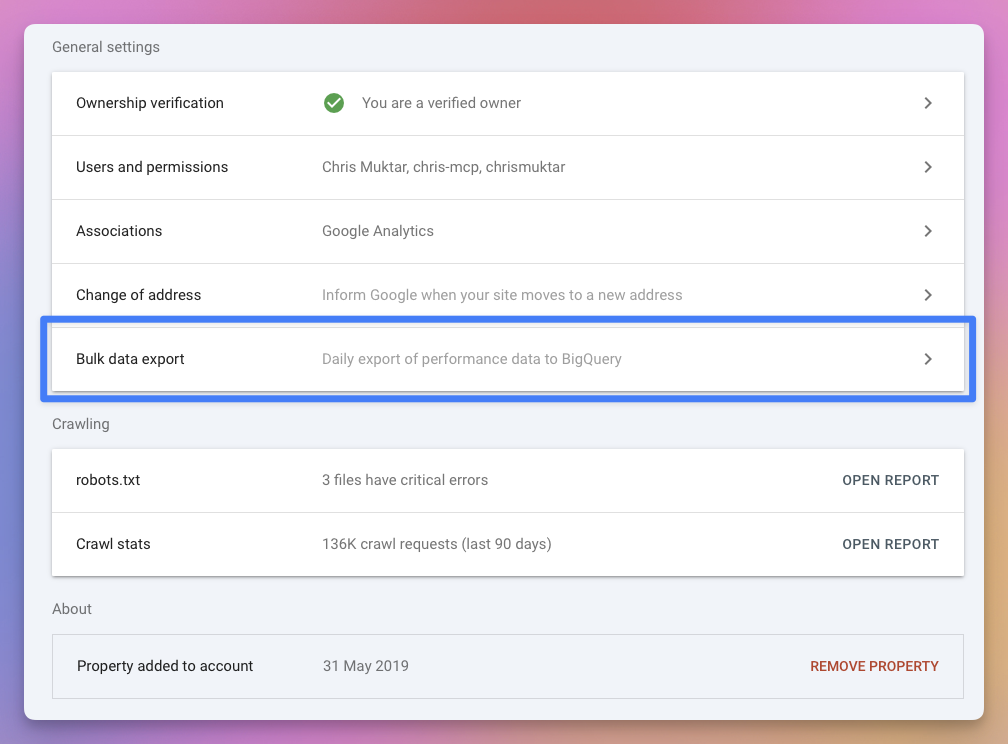
Click settings in the left-hand sidebar.
Select bulk data export.
Edit your Site Settings, and Enable Google Search Console.
The Cloud project ID is
live-glass.Dataset name should be
searchconsole_{site_id}. You'll need to paste your unique dataset ID as provided by Glass Analytics in the previous step.The dataset must be
Europe (EU).Fill in the form
These are provided in your site settings and you can copy-paste them from there.
The Cloud project ID is
live-glass.Dataset name should be
searchconsole_{site_id}.The dataset must be
Europe (EU).Press 'Continue'
Wait up to 48 hours for data to begin to flow
How to Analyse Google Search Console data in Glass Analytics
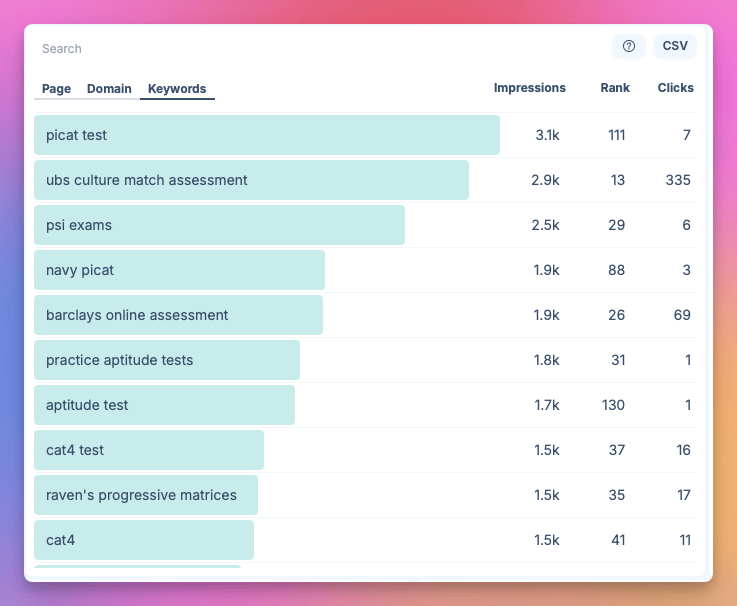
#When Google Search Console integration is enabled, a new 'Keywords' tab is added to the first panel on the analytics Dashboard.
Here you can see:
- Impressions
- Average rank
- Clicks (from Google Search)
Hovering over a keyword exposes a Filter button.
This button will allow you to segment the dashboard by this keyword.