User Tracking
By default, Glass Analytics tracks users anonymously only.
Glass Analytics also allows you to optionally associate a User ID or email address with a user.
Glass Analytics has the ability to automatically identify email addresses on a page and associate these with a user.
How to Track Users with Glass Analytics
Edit your Site Settings
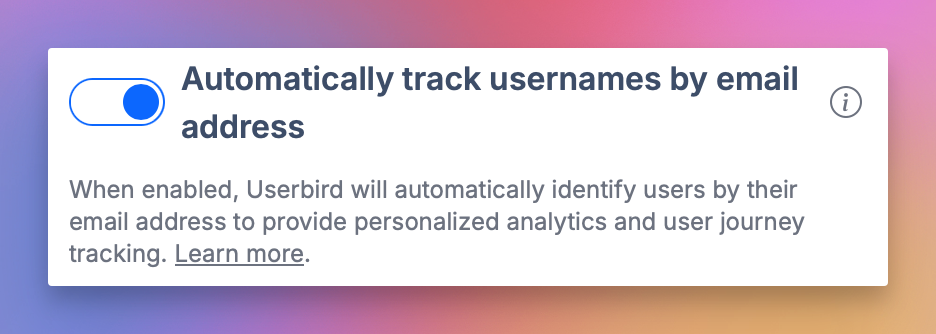
Enable 'Automatically track usernames by email address'
This will enable automatic email detection and associate it with an email address.
For this to work, the email address has to be visible on the page.
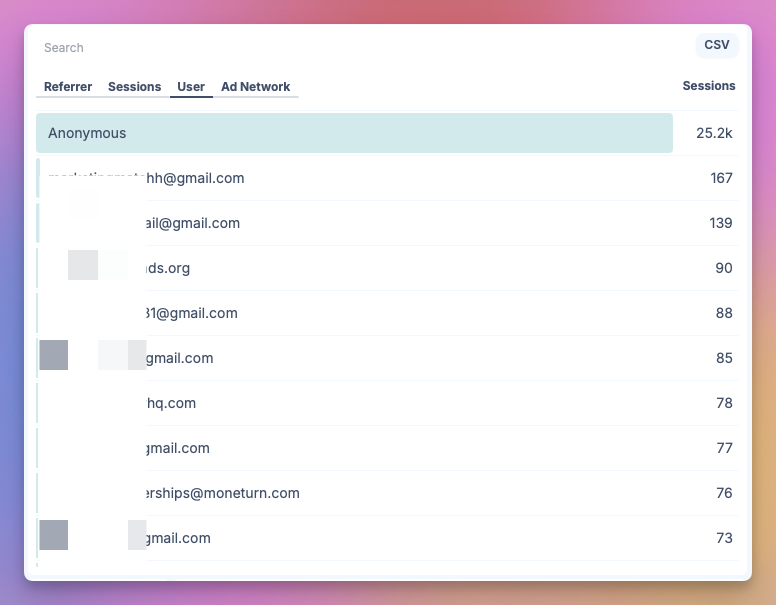
See the 'User' tab in your analytics to see Users
Users will be automatically associated with all events.
User data has been blurred out in this screenshot.
Manual User Tracking
#If you would prefer to manually associate a user email with a session, you can do this using a code snippet.
<script>
userbirdq.push('session_var', {user_id: 'user@email.com'})
</script>
This will associate all events of that session (including prior events) with this user_id.
User ID's don't need to be email addresses - they can be any string.
Stripe Integration
#When used with Glass Analytics's Stripe Integration, Glass Analytics will join anonymised session data with Stripe payment data via tracked usernames.
Frequently Asked Questions
What are the privacy implications of user tracking?
You should identify that you use Glass Analytics in your site's privacy policy.
Under GDPR, you require consent to track usernames.